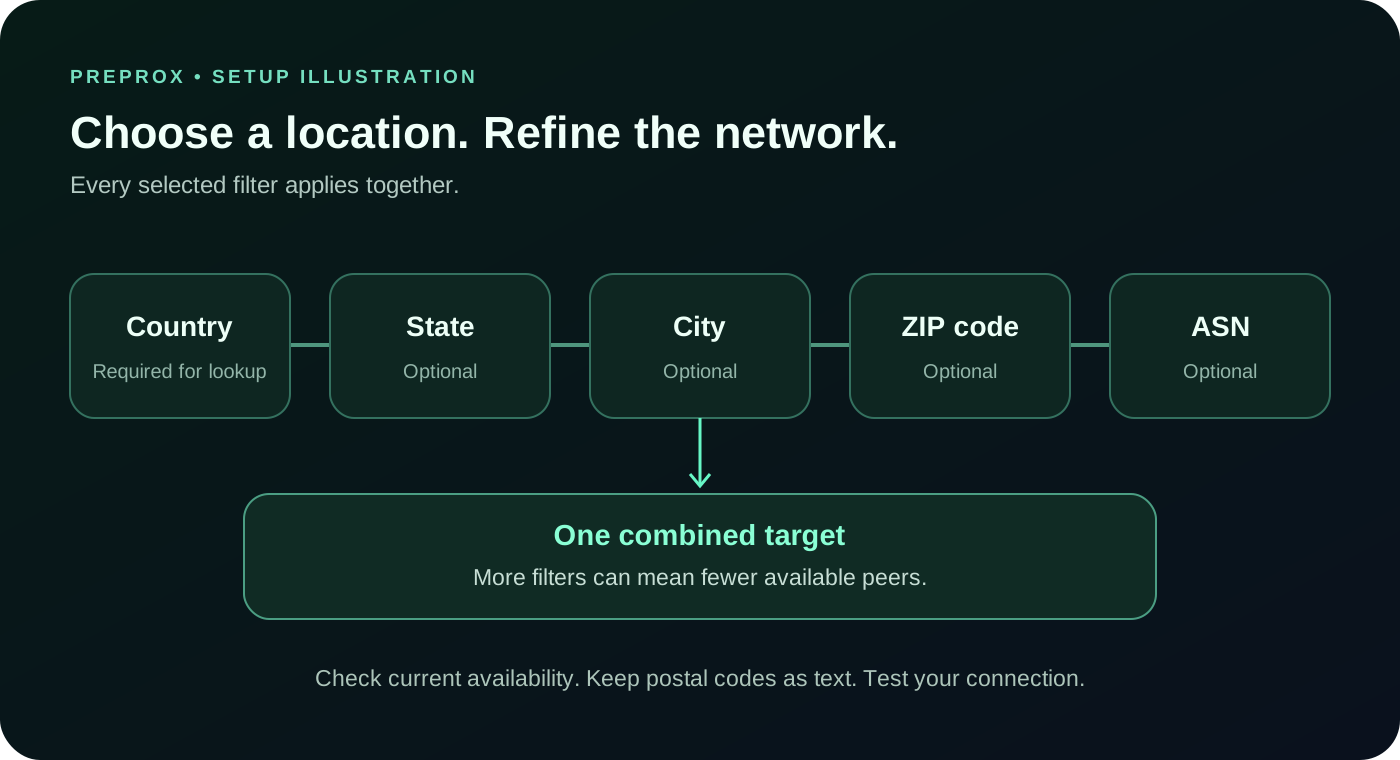
PreProx Residential Data lets you choose a country and optionally refine it by state, city, ZIP code and ASN. These selections apply together. Begin with the broadest location that meets your needs, then narrow it only when the workflow requires a more specific area or network.
Country scopes each location and network lookup. State, city, ZIP code and ASN are optional filters. A narrower combination can have fewer available peers, or none.
- Choose the country first; United States is the dashboard default.
- Available state, city, ZIP code and ASN choices follow the selected location.
- Keep ZIP codes as text so leading zeros and letters are preserved.
- Test the resulting connection before increasing the volume of requests.
What each targeting option controls
| Option | Meaning | When to choose it |
|---|---|---|
| Country | The country used to scope available locations and networks. | Start here for national content, prices or localized testing. |
| State | An optional region within the chosen country. | Use it when a state or regional result matters. |
| City | An optional city within the selected country and, when chosen, state. | Use it for a more specific local view. |
| ZIP code | An optional postal area, preserved as a string. | Use it when the workflow needs a supported postal area. |
| ASN | An Autonomous System Number identifying an internet network. | Use it when a particular available network matters. |
An example location choice
This is an illustration of the selection process, not a promise of current stock. Use the options currently returned in your dashboard.
| Step | Example selection | What to check |
|---|---|---|
| 1. Country | United States | The country defines the available location and network choices. |
| 2. State | California | The city options should follow the selected state. |
| 3. City | Los Angeles | The ZIP options should follow the selected city. |
| 4. ZIP code | A postal code from the available list | Do not assume every postal code has an available peer. |
| 5. ASN | Any ASN, or one available network | Adding an ASN narrows the location combination further. |
1. Open Residential Data and choose a country
Sign in, open Residential Data and find the Dynamic Target Generator. United States is selected by default. Use the country search to select another supported country. You need an active Residential Data balance to use the generated connection.
Country is required for each availability lookup. The other location levels are optional: you can use a country alone, a country with a state, or a more detailed combination that is available in the current lists.
2. Refine the location only as far as needed
Select a state to narrow the cities, then a city to narrow ZIP codes. The available choices are requested using the parent filters; they are not a fixed worldwide list. When you change a parent location, review the dependent fields again before using the connection.
Postal codes are text values, including codes with leading zeros or letters. Choose the value exactly as it appears in the list. A blank optional field means you have not added that restriction.
3. Add an ASN when network selection matters
ASN means Autonomous System Number. It identifies a network, such as an internet service provider, rather than a city or postal area. Choose Any ASN when the location alone meets your requirements.
A country can be used to look up ASNs without choosing a city or ZIP code. Adding a state, city or ZIP code narrows the lookup. If you choose an ASN as well as a location, both restrictions apply together.
4. Review availability before adding more filters
Available options can include a count indicating the current matching pool. Counts are a point-in-time availability signal, not a reservation or a guarantee that the next request will have an available peer.
If a detailed combination has no available result or a connection fails, clear an optional restriction and try a broader location. Do not assume the service will silently relax your selection or return a particular fallback location. Test the actual exit IP and location.
5. Copy and test the connection
Choose the rotation mode, protocol, quantity and output format. The formatted proxy list updates automatically. Copy it into the software you intend to use, or download the list. Keep the username and password private.
Use the connection test and check the returned IP, location and network. A location reported by a destination or an IP database may differ from another database. Confirm the result in your actual workflow before sending more traffic.
Your targeting choices are saved in the same browser. Use Clear when you want to remove optional targeting. Changing the targeting on a session port starts a new session and can change its exit IP.
Common questions about proxy servers
Can I combine country, state, city, ZIP code and ASN targeting?
Yes. Selected filters apply together as one combined selection. More specific combinations may have fewer peers or no available peer, so check current availability and test the connection.
Do I have to select a city before choosing an ASN?
No. Country is required for the ASN lookup; state, city and ZIP code are optional filters. Choose Any ASN if you do not need a particular network.
Are ZIP codes with leading zeros supported?
ZIP and postal codes are preserved as text, including leading zeros and letters. Select a code exactly as it is listed in the available options.
Does selecting more targets guarantee a proxy in that location?
No. Targeting narrows the eligible pool. Current counts help you assess availability, but peers can go offline and a narrow combination may have no available peer. Broaden an optional filter and test again if needed.