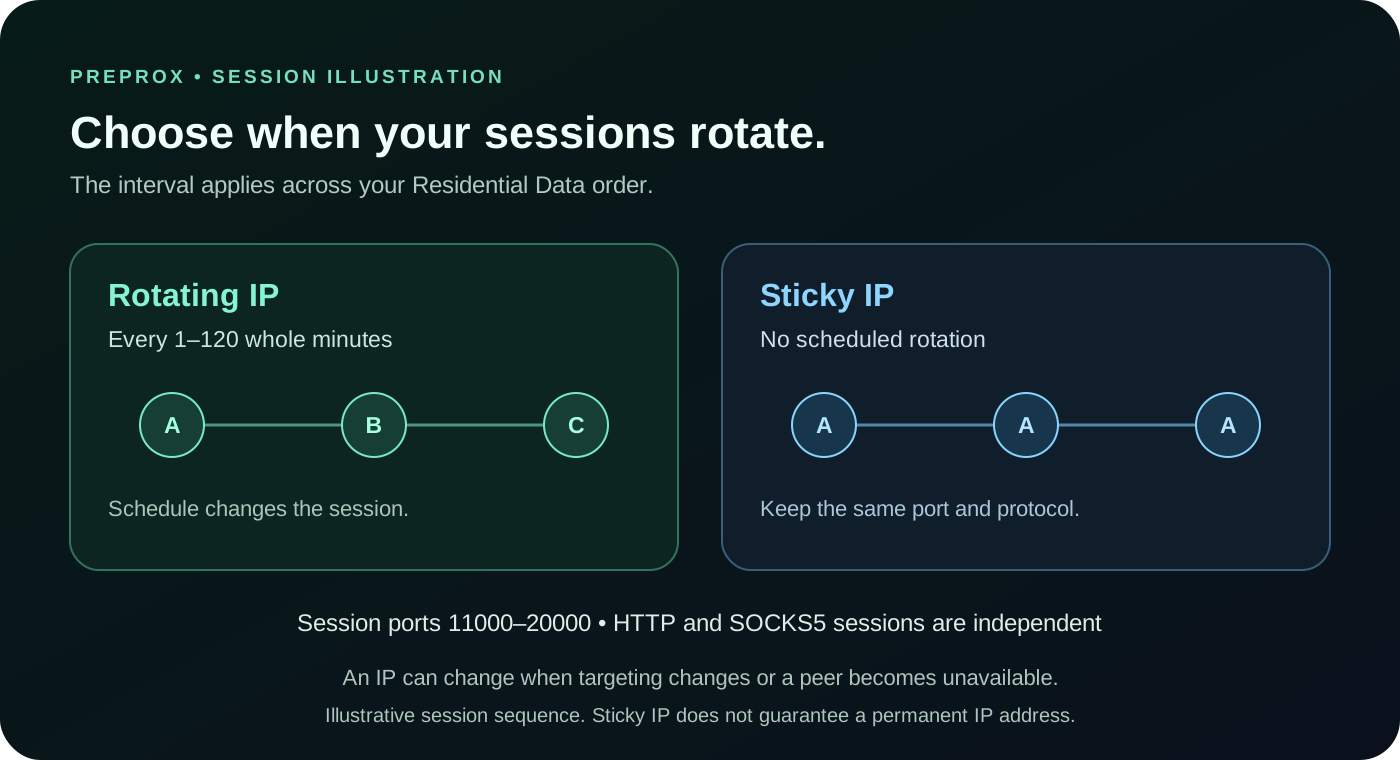
PreProx Residential Data gives you two dashboard modes: Rotating IP changes sessions on a schedule of 1–120 whole minutes, while Sticky IP disables scheduled rotation. Choose the behavior that matches your workflow, then use the same session port and protocol when you need to continue that session.
The dashboard defaults to Rotating IP every 1 minute. Choose an interval from 1 to 120 minutes, or select Sticky IP to turn the schedule off. Sticky does not guarantee the same IP forever.
- The rotation interval is shared by all session ports on your Residential Data order.
- HTTP and SOCKS5 both use session ports 11000–20000, with independent sessions for each protocol.
- Changing targeting starts a new session; peer availability can also change the exit IP.
- Quantity gives you separate session ports, not guaranteed unique exit IP addresses.
Rotating IP and Sticky IP compared
| Setting | Rotating IP | Sticky IP |
|---|---|---|
| Scheduled rotation | Enabled at the chosen whole-minute interval. | Disabled; no scheduled expiry is set. |
| Interval input | 1–120 minutes; the dashboard default is 1 minute. | Hidden because scheduled rotation is off. |
| Session ports | 11000–20000 for HTTP and SOCKS5. | 11000–20000 for HTTP and SOCKS5. |
| What can change the IP | The schedule, a targeting change or peer availability. | A targeting change, manual rotation or peer availability. |
| Scope | The interval applies to the Residential Data order. | Disabling the interval applies to the Residential Data order. |
A connection format example
These are placeholders, not working credentials. Copy the actual connection values from your account instead of typing the example.
| Field | Example | Meaning |
|---|---|---|
| Host | resi.preprox.com | The PreProx residential gateway shown in the dashboard. |
| Port | 11000 | One session port; subsequent quantity entries use additional ports. |
| Username | USERNAME__cr.us | A placeholder showing a country target; use your generated username. |
| Password | PASSWORD | A placeholder; keep your real account credentials private. |
| Formatted entry | resi.preprox.com:11000:USERNAME__cr.us:PASSWORD | Host:port:username:password format. Select the format your software supports. |
1. Set a rotation schedule or choose Sticky IP
Open Residential Data and choose your location in the Dynamic Target Generator. Select Rotating IP and enter a whole number from 1 to 120 in Rotation interval (minutes). The default is 1 minute. An entered value above 120 is limited to 120.
Select Sticky IP when you want scheduled rotation disabled. The interval input disappears. The setting is applied automatically as the connection details update; wait for the page to confirm the setting before using a changed configuration.
2. Understand what a session port represents
A session is identified by its port in the 11000–20000 range. Keep the host, port, credentials, targeting and protocol consistent to continue using that session. The dashboard assigns a starting port and gives additional entries their own ports when you increase Quantity.
HTTP and SOCKS5 support the same numeric session-port range, but they do not share session identities. For example, HTTP on port 11000 and SOCKS5 on port 11000 can have different exit IPs. Switching the protocol is not a way to preserve the previous protocol’s session.
The dashboard’s Rotating IP option uses timed rotation on session ports. It should not be confused with a connection configured to rotate on every request. Check the displayed rotation mode and interval for the connection you are using.
3. Account for the shared interval
The scheduled rotation interval belongs to your Residential Data order, rather than to one browser tab or one port. Changing it also affects existing session-port connections on the same order.
If you change from a 30-minute schedule to Sticky IP, scheduled rotation is disabled for the order. If you later choose a 1-minute schedule, that schedule applies across its session ports. Coordinate changes when several tools use the same order.
4. Use Quantity, Format and Protocol
Choose Quantity to build a list with separate session ports. More entries do not guarantee more unique exit IPs: different sessions can receive the same residential exit IP, especially when the location or ASN selection is narrow.
Choose the output Format your software accepts, then HTTP or SOCKS5 for Protocol. The formatted proxy list changes automatically when these options change. Copy or download the list and use it in your actual client.
5. Test sticky behavior and monitor your balance
Use the connection test, then repeat a small request using the same protocol, port and targets to check the behavior your workflow needs. Changing a target starts a new session with a new IP. A peer going offline or another session failure can also change the exit IP.
Sticky IP has no scheduled time or day limit, but it is not a guarantee of a permanent IP address. Plan for reconnects and check the current exit IP when continuity matters.
Residential Data is charged by traffic. Unused purchased bandwidth does not expire. Top-ups add bandwidth to the same order and keep its credentials and session settings. Review current package prices on the Residential Data product page and keep enough balance for ongoing work.
Common questions about proxy servers
What is the default residential rotation interval?
The dashboard defaults to Rotating IP every 1 minute. You can choose a whole-minute interval from 1 to 120, or select Sticky IP to disable scheduled rotation.
Does Sticky IP keep the same IP forever?
No. Sticky IP disables scheduled rotation and has no scheduled day limit. The IP can still change if a peer becomes unavailable, the session fails, targeting changes or a manual rotation is performed.
Why do rotating and sticky connections both use port 11000?
Both dashboard modes use session ports in the 11000–20000 range. The order’s rotation interval decides whether those sessions rotate on a schedule. Selecting Sticky IP disables that schedule.
Does the same port use the same IP for HTTP and SOCKS5?
HTTP and SOCKS5 have independent sessions. The same numeric port on the two protocols can return different exit IPs.
Will a quantity of 10 give me 10 unique IP addresses?
Quantity 10 produces 10 proxy entries using separate session ports. It does not guarantee 10 unique residential exit IPs. Pool availability and targeting affect the IPs available to those sessions.